
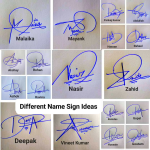




Creating a signature that incorporates an image can significantly enhance your personal or professional branding. This unique blend of visual elements and typography offers an opportunity to make a memorable impression in both digital and print communications. In this guide, we’ll explore the steps and considerations involved in designing a signature that effectively integrates an image, ensuring it is both aesthetically pleasing and functionally relevant. Whether you’re looking to add a personal touch to your emails, business cards, or official documents, this guide will provide you with the necessary insights and techniques to create a signature that stands out while aligning with your individual or brand identity.
What is Signature Image?
A signature image is like a stamp that’s all about you. It’s your name, written in your own style, that you can use on a computer or phone. Here’s what it’s all about, explained for anyone just getting started:
- A Digital Stamp: Think of it like a sticker of your signature that you can put on online homework, emails, or any place online where you need to show something is from you.
- Your Personal Touch: It’s your name, written by you, but turned into a picture so you can use it again and again without needing to rewrite it every time.
- Super Handy: No need for pens or printers. You can use your signature image to sign things right from your computer or phone, which saves time.
- Looks Sharp: Using your signature image makes things look neater than writing with a pen, especially if you’re not near a printer.
- Just Yours: Like a password, it helps show that something really comes from you, because no two signatures are exactly alike.
- Easy to Make: You can make one by writing your name on paper, taking a picture with your phone, and then making that picture into a signature image.
A signature image is perfect when you need to sign something without using paper, like giving a thumbs up on a report card or a job well done on a project. It’s your mark, just like a thumbprint, only it’s the way you write your name.
How to Create Signature with Image
here i will explain how you can create signature with image .
Sign on Paper: Use a pen and write your signature on a plain white paper. Make it look nice and clear.- Take a Picture: With your phone, take a picture of just the signature. Do this in a place that’s bright so the signature is easy to see.
- Get the Picture on Your Computer: You can get the picture onto your computer by emailing it to yourself or by connecting your phone to the computer with a wire.
- Make the Picture Better: On your computer, open the picture with a program that lets you change the picture. You can use one like Paint.
- Cut Around Your Signature: Use the program to cut out everything but your signature. You want just your name and nothing else around it.
- Make the Background Go Away: If you want, you can make the part around your signature see-through with a special tool in the program. It’s like using an eraser to erase everything but your name.
- Save the Signature: Now, save this new picture of your signature. If you made the background go away, save it as a ‘PNG’. If not, ‘JPG’ is fine.
- Use It Anywhere: You can now put this signature picture into any document on the computer, just like putting a sticker on paper.
And there you go! You’ve made a picture of your signature to use for all your online stuff. It’s as simple as putting a sticker where you want it.
Usage of Signature Image
Here’s where you can use your signature that’s a picture:
- On Your Emails: Make your emails look more “you” by adding your signature at the end.
- Filling Out Online Papers: If a website says “sign here,” you can use your picture-signature instead of printing and scanning.
- Schoolwork: Add it to your reports or projects to show you did it.
- Showing Off Your Slides: If you make a cool slideshow, put your signature on the last slide.
- Applying for Jobs or Schools Online: Some applications ask for a signature. Use your picture-signature to finish the job.
- Posting Art Online: If you draw or create stuff and share it on the internet, sign it with your signature.
- Signing Official Stuff: For some contracts or important forms, you can use your signature-picture. But ask an adult if this is okay for really important things.
- Letters for Work or Projects: If you’re sending a letter for a project, add your signature to make it look professional.
And remember, keep your signature safe like you would with anything that’s special to you, so only use it when you need to.
Creating a Signature Image: The Easiest Way
The process of creating a signature image is straightforward. You can write your signature on a piece of paper, scan it, and save it as an image file, or you can use one of the many online tools available that enable you to draw your signature with a mouse or touchpad. One effective and easy-to-use resource is Create Signature Online Free, which allows for quick creation without the need to download any software.
How to Make a Signature Picture on Mobile
Mobile devices provide a canvas right in your pocket. With a stylus or finger, you can draw your signature on the screen through various apps designed for note-taking or drawing. Some apps are specifically designed for signature creation, offering you the tools to create a perfect digital rendition of your handwritten signature.
Want to make a signature image using your phone? Easy peasy! There are apps for that. Just open an app, scribble your signature on your phone’s screen, and save it. Now you can attach it to any document you want to sign.
How to Make a Transparent Signature
A transparent signature maintains the integrity of the underlying document. To create one, use an image editing tool to remove the background, leaving only your signature. Save the file in a format that supports transparency, such as PNG, to ensure your signature can be overlaid onto different backgrounds without a white box around it.
The Importance of a Signature Image
A signature image is a quick way to show your signature online. It saves time and paper, which is good for the environment.
1. Fast: You can sign papers on your computer super fast, no need for printing or mailing.
2. Clean: Your signature picture is always sharp and clear, not blurry or messy.
3. Private: Only you and the people who need to see your signature will see it.
4. Easy to Keep: Save it on your computer, and it’s like it’s glued there for when you need it.
5. Saves Trees: Using a signature picture means less paper, which is a thumbs-up for the earth.
6. Everyone Likes It: Most places you need to sign things are cool with a signature picture.
7. Proves It’s Made by You: When you make stuff like homework or drawings, putting your signature picture on it is like showing a badge that says “I did this!”
So, a signature image is your name written out and turned into a picture that you can use over and over on the computer—easy-peasy and good for the planet, too!
How to Create a Signature JPG
To convert your handwritten signature into a JPG file, begin with a clear signature on white paper. Take a high-resolution photo or use a scanner to get a digital copy. Use online converters or image editing software to crop, adjust contrast, and save it in the JPEG format, which is widely accepted for most applications.
Signature Picture: Top Online Tools
Several online tools can help you create a signature image. Beyond the earlier mentioned resource, other top contenders include Adobe Sign, HelloSign, and DocuSign. These platforms offer a range of functionalities, from basic signature creation to comprehensive document management solutions.


Add Comment