




In today’s digital world, a professional email signature is more than just a formality; it’s a part of your personal branding. Microsoft Outlook, a leader in email communication, offers versatile options for creating and managing signatures. This guide walks you through the steps to create and customize your signature in Outlook, addressing key questions and incorporating essential SEO keywords.
How to Create a Digital Signature in Outlook
Creating a digital signature in Outlook can be a valuable skill, especially in today’s digital age where email communication is prevalent. A digital signature not only adds a personal touch to your emails but also enhances the security and authenticity of your messages. Here’s a simple and clear guide on how to create a digital signature in Microsoft Outlook:
- Open Outlook: Start by opening your Microsoft Outlook application.
- Access Signature Settings:
- In Outlook, go to the ‘File’ tab in the top left corner.
- Click on ‘Options’ to open the Outlook Options window.
- In the Mail category, find and click on the ‘Signatures’ button. This will open the Email Signature tab.
- Create a New Signature:
- In the Email Signature tab, click on the ‘New’ button.
- Name your signature. This is especially useful if you plan to have multiple signatures for different purposes.
- Design Your Signature:
- In the editing pane, you can type the text that you want to include in your signature. This might include your name, job title, company, contact information, or even a motivational quote.
- You can format the text using the small toolbar above the editing pane (font size, color, bold, italics, etc.).
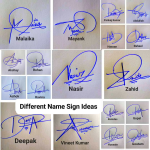
- To add a digital signature (like a scanned image of your handwritten signature), click on the ‘Insert Image’ icon and upload your signature image.
- Set Signature Defaults:
- You can choose if your signature appears automatically on all new messages and/or replies/forwards. Set these preferences under the ‘Choose default signature’ section.
- Select the email account to which the signature should apply, if you have multiple accounts.
- Save Your Signature:
- After customizing your signature, click ‘OK’ to save it.
- Test Your Signature:
- Compose a new email to see if your signature appears as expected.
Outlook Signature Setup:
- For Outlook 2024 and Outlook 365: Navigate to the settings menu, often symbolized by a gear icon. Here, you’ll find options under ‘Mail’ to create or edit your signature.
- Adding Signatures to Outlook Emails: You can add a personalized touch to your emails by including your contact information, social media links, or even a favorite quote.
2. Add Signature to Outlook:
- In the signature editor, type your desired text. You can format this text just like you would in a regular email, adjusting font, size, and color.
3. Email Footer Outlook:
- Think of your signature as an email footer. It should contain essential contact information and any legal disclaimers your company requires.
Managing Multiple Signatures
4. Can I Have 2 Signatures in Outlook?
- Absolutely! Outlook allows you to create and save multiple signatures. For instance, you might have a formal signature for external emails and a more casual one for internal communication.
5. Outlook Mail Signature:
- To switch between signatures, go to the compose message window and select the appropriate signature from the dropdown menu.
Customization and Automation
6. How to Get Outlook to Automatically Add a Signature:
- You can set a default signature for new emails and replies/forwards. This ensures consistency and saves time.
7. Change Signature in Outlook:
- To edit or update your signature, simply return to the signature settings and make your desired changes.
8. Add Signature in Outlook for Specific Scenarios:
- For specific emails, you might prefer to manually add or change the signature. This can be done in the compose message window.
Advanced Signature Options
9. How Do I Copy My Signature in Outlook for All Emails?
- After creating your signature, set it as default for new messages and replies/forwards. This copies your signature across all your outgoing emails.
10. Outlook How to Make a Signature That Stands Out: – Include elements like a small, professional photo, social media icons, or your company logo. Remember, the signature should enhance, not overwhelm, your message.
11. Where is the Outlook Signature Stored? – Your signatures are saved in the Outlook program files on your computer, allowing for easy backup and transfer.
Conclusion
A well-crafted email signature in Outlook can significantly enhance your professional communication. By following these steps, you can ensure that your signature is not just a formality, but a reflection of your professional persona.
Frequently Asked Questions
- How Do I Add My First Name in Outlook?
- Simply start your signature with your first name. It’s the first thing people see, setting a friendly tone.
- Where Do I Edit My Signature in Outlook?
- Go to the signature settings in the mail options.
- How Do I Get Outlook to Display All Signatures?
- In the signature menu, you can preview all your created signatures.
- Outlook Set a Signature:
- Choose a signature as your default for new emails and replies/forwards.
- Signature Outlook Change:
- Keep your signature updated to reflect any changes in your professional status or contact information.
Remember, your Outlook signature is more than just your name; it’s a part of your digital identity. Make it count!




Add Comment